

How to Apply for a Works in City Streets Permit
eApply User Guide
Welcome to the eApply portal! This guide will walk you through each step of the Works in City Streets application process, ensuring you have the information and resources needed to complete your application smoothly and efficiently.
With the eApply portal, applying for a Works in City Streets permit is streamlined and user-friendly. This document provides detailed, step-by-step instructions to help you navigate each page of the portal, from initial setup to final submission.
Apply for a Works in City Streets Permit
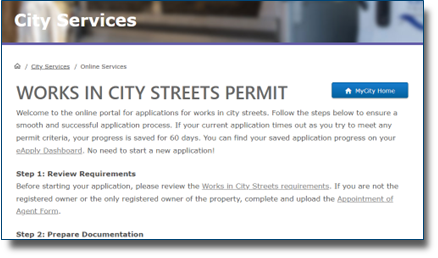
How to Use This Guide
Please use this guide alongside the eApply application portal. Follow the instructions in this guide step-by-step. Each section in the Page-by-Page Application Instructions section matches a specific page in the application process, offering details and tips to help you complete each part accurately. Key information is highlighted in blue boxes (example below), so be sure to read this information carefully.
Always read this important text. It will help you with your application!
Navigating eApply
Understanding Symbols Used in eApply
When navigating eApply, helpful information is included throughout to support you during your application. Look out for the symbols below:
 | Tool tips are marked with this blue icon. Hover over them to see helpful information! |
| * | Mandatory items are marked with a red asterisk. |
Unsubmitted Applications
While filling in your application, if you leave without submitting (or you are inactive for more than 10 minutes), eApply automatically saves your unsubmitted applications.
Unsubmitted applications expire after 60 days! Please ensure you complete and submit your application within this timeframe to avoid losing your progress.
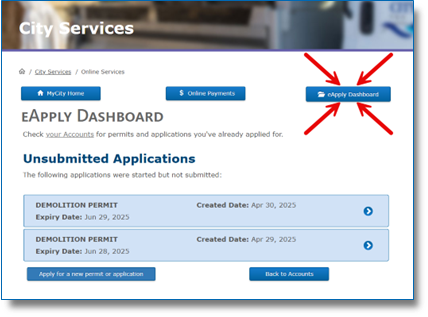
To access these unsubmitted applications, go to your MyCity account and navigate to the “eApply Dashboard” area (see image below). All saved applications are listed here and will indicate the created date and the expiry date. Click one to pick up where you left off!
Before Starting Your Works in City Streets Permit Application
Before you begin applying for a Works in City Streets permit, please review the permit requirements, prepare necessary documentation, and confirm you have a MyCity account. Doing this ahead of time will help ensure a smooth and successful application process.
Review Works in City Streets Permit Requirements
Before starting your application, please review the Working in City Streets and Right-of-Way Guidelines and Information.
Prepare Applicable Documentation
During the application process, you will be asked to upload applicable documents. Please have the following documents ready, if applicable:
Appointment of Agent Form: If you are one of multiple owners or an agent applying on behalf of owner(s), complete and upload the Appointment of Agent Form. This form is not required if you are the sole owner.
Create or Use Your MyCity Profile
Users must be signed in to a personal or business MyCity profile to complete applications in the eApply portal. You can log-in to or register for a MyCity profile during the application process.
Don’t have an account? Visit mycity.nanaimo.ca to sign up today!
Page-by-Page Application Instructions
Let's get started! This section explains the different pages you’ll see while completing your eApply Works in City Streets permit application and provides details on how to complete your application.
Please read all instructions carefully. If you have any questions, contact City of Nanaimo staff at developmentengineering@nanaimo.ca or 250-755-4251 for help.
! CLICK HERE to start your application !
Works in City Streets Permit Application Start Page
This page includes important information about completing your application. Preparing ahead of time will help ensure a smooth and successful application process.
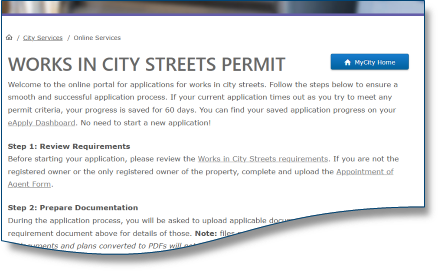
- Open the Work in City Streets Permit Application start page.
- Read the content provided on the page.
- Click "Continue" to proceed.
Login Page
This page will not appear if you are already logged in to MyCity.
Need an account? Click "Register for an account" and follow the prompts to set one up!
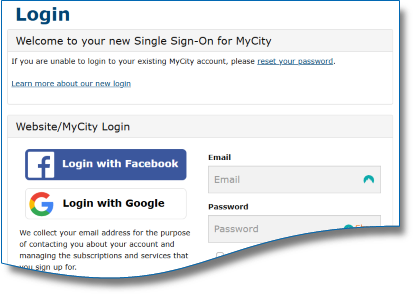
Using Facebook or Google
If you want to login using Facebook or Google, click the option you prefer and follow the prompts.
Using Email and Password
- Enter your personal or business email address and password.
- If you’ve forgotten your password, click “Forgot your password?” and follow the prompts.
- If using a personal device, check the "Remember me" box if you want the site to remember your login details.
- This option is not recommended for public or shared computers.
- Complete the reCAPTCHA to verify you are not a robot.
- Click "Login" to access your account.
Required Questions
You will have to provide proof of insurance for this permit type. Here is an example of what that may look like: Example Certificate of Insurance
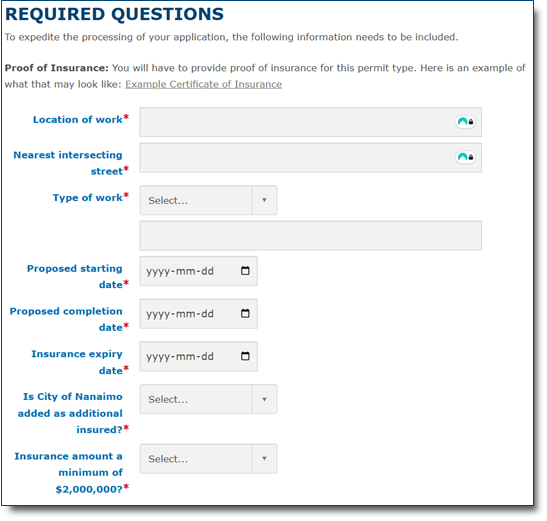
For each applicable field:
- Click the question mark icon to further understand the information required.
- Review and fill in the information; all fields on this page are marked with a red asterisk and are therefore mandatory fields (*).
- None of the available options for the Type of work describes what you are planning to do?
- Select “Other” and describe the planned work in the field below.
- Enter the applicable dates in YYYY-MM-DD format or select the date from the calendar that opens when you click the calendar icon.
- If you cannot answer the bottom two questions with Yes you will not be able to continue with your application. You will have to provide proof of insurance that includes the City of Nanaimo covering a minimum of $2,000,000 for this permit type.
- Click “Continue” to move forward.
Optional Questions
If the Works in City Streets permit application is related to one or more existing permits, please enter them below. This information will assist staff in processing your application.
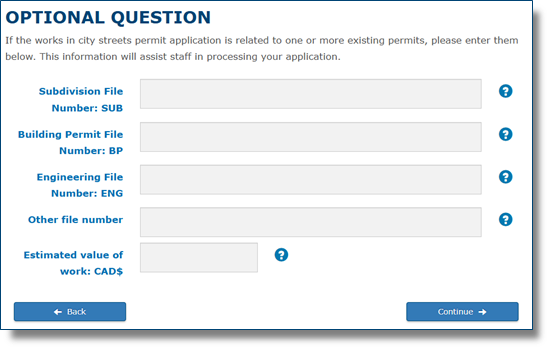
For each applicable field:
- Click the question mark icon to further understand the information required.
- Review and fill in the information; none of the fields on this page are mandatory fields. Information on related existing permits will assist staff in processing your application.
- Click “Continue” to move forward.
Required Documents Upload Page
Only PDF documents are accepted. Please do not upload any other file types.
Note: Photos or screenshots of documents and plans converted to PDFs will not be accepted.
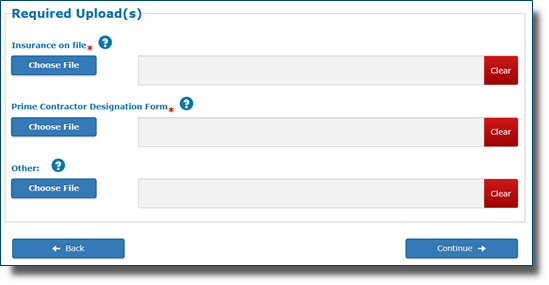
Here’s where you can upload optional documents related to your application.
For each applicable document type:
- Click the question mark icon to further understand the documentation required.
- Click “Choose File”. A file explorer window will open.
- From the window, select the appropriate file from your device.
- Click “Open” and the filename will appear in the grey field.
- Repeat this step for each type of document you need to upload.
- Uploaded the wrong document?
- Next to the file you want to remove, click “Clear”.
- Follow step 1 above and upload the correct document.
- Click “Continue” to move forward.
Additional Documents Upload Page
Upload the documents that are applicable to your application. One document can be uploaded for each document type below.
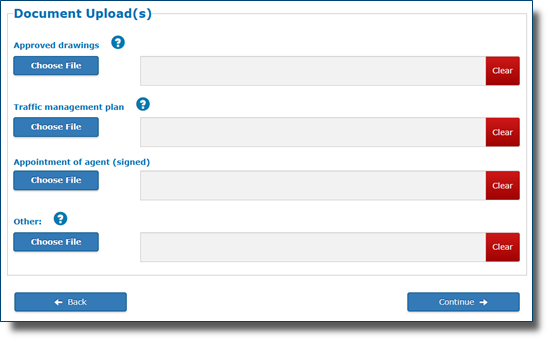
For each applicable document type:
- Click the question mark icon to further understand the documentation required.
- Click “Choose File”. A file explorer window will open.
- From the window, select the appropriate file from your device.
- Click “Open” and the filename will appear in the grey field.
- Repeat this step for each type of document you need to upload.
- Uploaded the wrong document?
- Next to the file you want to remove, click “Clear”.
- Follow step 1 above and upload the correct document.
- Click “Continue” to move forward.
Contact Information Page
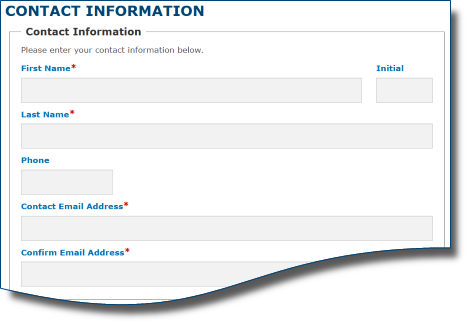
Here, you can add and manage contact information for both personal and business purposes. Multiple contacts may be added from this page.
- Enter your contact information; you must complete all mandatory fields (*).
- Review and fill in business information if applicable.
- Click "Add/Update Contact" to proceed.
- OPTIONAL:
- To add additional contacts, click “Add New” and return to step 1.
- To change information on a current contact, click the contact and adjust the details as needed.
- Once all contacts are added, click “Continue” to move forward.
24-Hour Emergency Contact Page
hours. The City will contact this person to correct deficiencies.
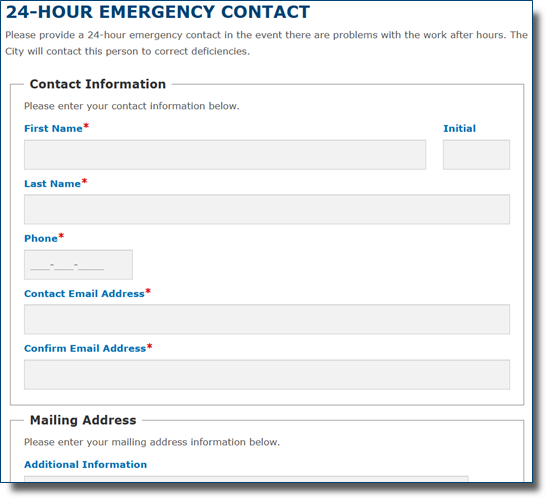
Here, you can enter the 24-hour emergency contact information.
- Enter information for your 24-hour emergency contact; you must complete all mandatory fields (*).
- Click “Continue” to move forward.
Business License Selection Page
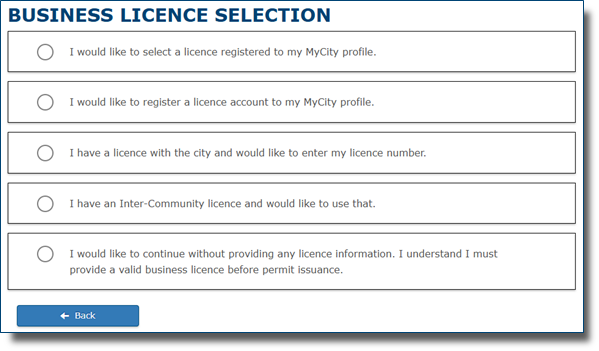
You can connect a business license to your Works in City Streets application and eApply gives you several options to do this. Read each option carefully and choose the one best suited for your application.
- Select one of the available options.
- Depending on your choice, fill in the requested information (if any).
- Click "Continue" to move forward.
Confirmation Page
Please review all information carefully. Incomplete applications will not be accepted.
- Review your information carefully and check all the details entered on the page.
- If needed, click the “Edit” button under each respective section to correct any information.
- Read all acknowledgement(s).
- Check acknowledgement box(es).
- When ready, click “Continue” to submit your application.
Receipt Page
! No work can begin on a project until all criteria are complete and the permit is issued by the City of Nanaimo.
Congratulations! Your application has been submitted.
Contact Us
Last updated: December 23, 2025
Give feedback on accessibility. Submit your feedback through our online accessibility feedback form. Help us understand barriers people face when accessing City services.
You can attach files to help explain the barrier you faced in the form, like: a video, voice recording or photos. If American Sign Language (ASL) is the best way for you to communicate, upload a video of yourself using ASL into the form.
Please include: what you were trying to access, where the barrier happened, what the barrier was and any recommendations you might have.
Help us improve our website
Freedom of Information and Protection of Privacy Act Statement:
Information collected on this form is done so under the general authority of the Community Charter and Freedom of Information and Privacy Protection Act (FOIPPA), and is protected in accordance with FOIPPA. Personal information will only be used by authorized staff to fulfill the purpose for which it was originally collected, or for a use consistent with that purpose.
For further information regarding the collection, use, or disclosure of personal information, please contact the Legislative Services Office at 250-755-4405 or at foi@nanaimo.ca